Setup guide
From zero to live challenge tracking in about 10 minutes. Two ways to get your trades in: a small add-on in your platform (automatic, recommended: MT4/MT5, cTrader, NinjaTrader Desktop) or a history file exported from your platform.
1. Create your account
- 1
Sign up
Sign up with your email — magic link or password, your choice.
- 2
Add your account
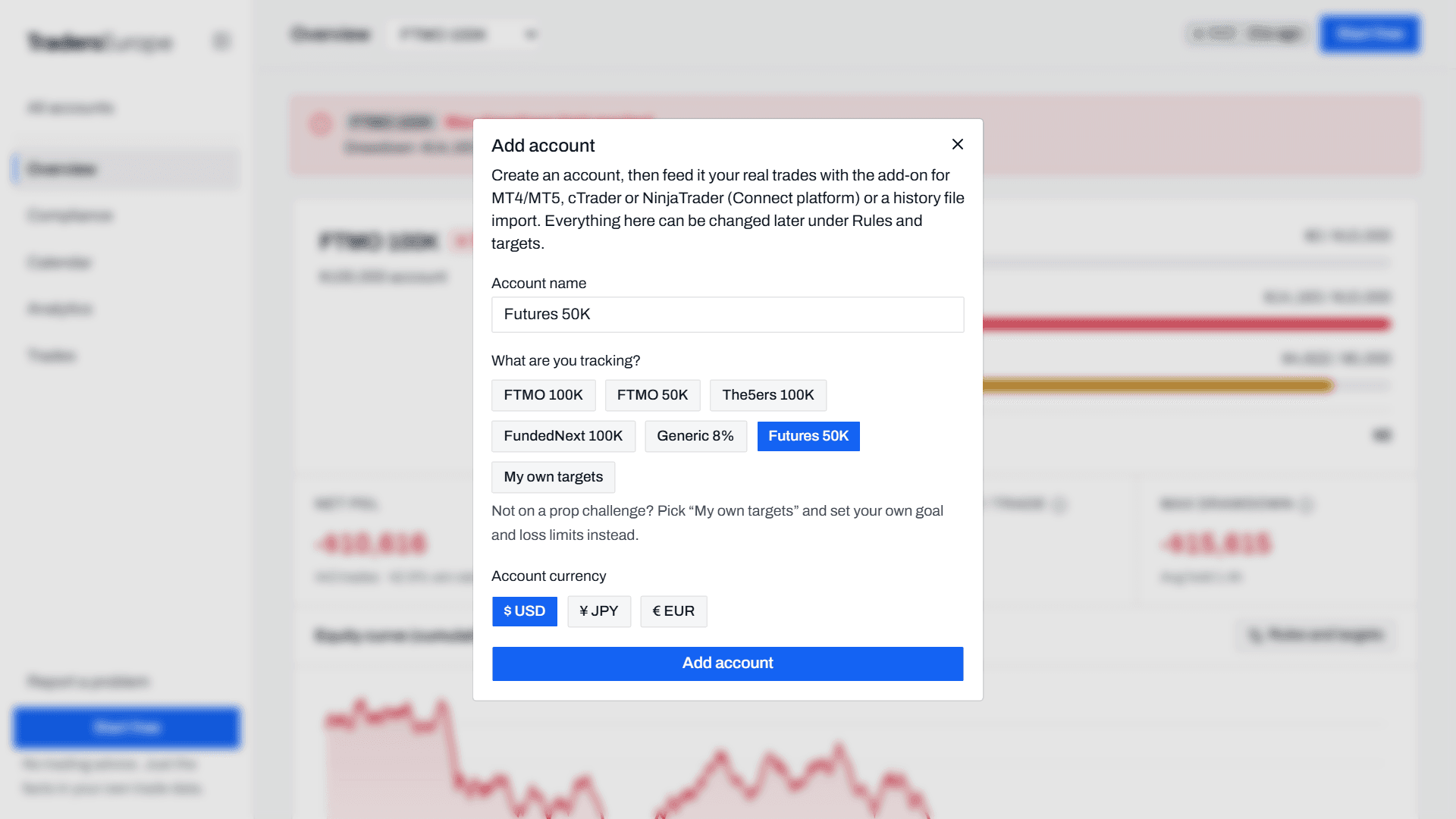
Click Add account, name it (e.g. “FTMO 100K attempt 2”), and pick what you're tracking — FTMO, The5ers and FundedNext presets are included. Not on a prop challenge? Pick My own targets and enter your own account size, profit goal, max drawdown and daily loss limit. Then set the currency (USD, JPY or EUR).
Every rule is editable later under Rules and targets: profit target, daily drawdown, max drawdown. Presets are a starting point — if you are on a challenge, always verify against your firm's current rules.
2. Connect MT4/MT5 (auto-sync)
A tiny Expert Advisor pushes each trade to your dashboard as it closes (it checks every 10 seconds). Its full source code comes with your account, so you can verify every line: it only reads trade history, has no trading functions, cannot place or modify orders, and never asks for your investor password.
- 1
Download the EA
Use the link in the setup email we sent when you signed up, or download it here while signed in. Ready to use, no compiling needed: EA for MetaTrader 5 or EA for MetaTrader 4.
Want to audit it, or build it yourself? The full source is there too: .mq5 / .mq4. Put it in the same folder and compile with F7 in MetaEditor.
To check that a download is the exact file we published, compare its SHA-256 fingerprint (Windows:
certutil -hashfile TradersEuropeExporter.ex5 SHA256):- TradersEuropeExporter.ex5: 165cc830158bbd994046a779f224534341c779773060674dda79bf09471d0855
- TradersEuropeExporter.ex4: 1d6f1a1a39acdf0cd8543c5fecfd9e5d194ee2b96fde1f2de87964912475e036
- 2
Copy it into your terminal
In MT4/MT5: File → Open Data Folder, then put the file in
MQL5\Experts\(MT5) orMQL4\Experts\(MT4). Restart the terminal — the EA appears in the Navigator under Expert Advisors.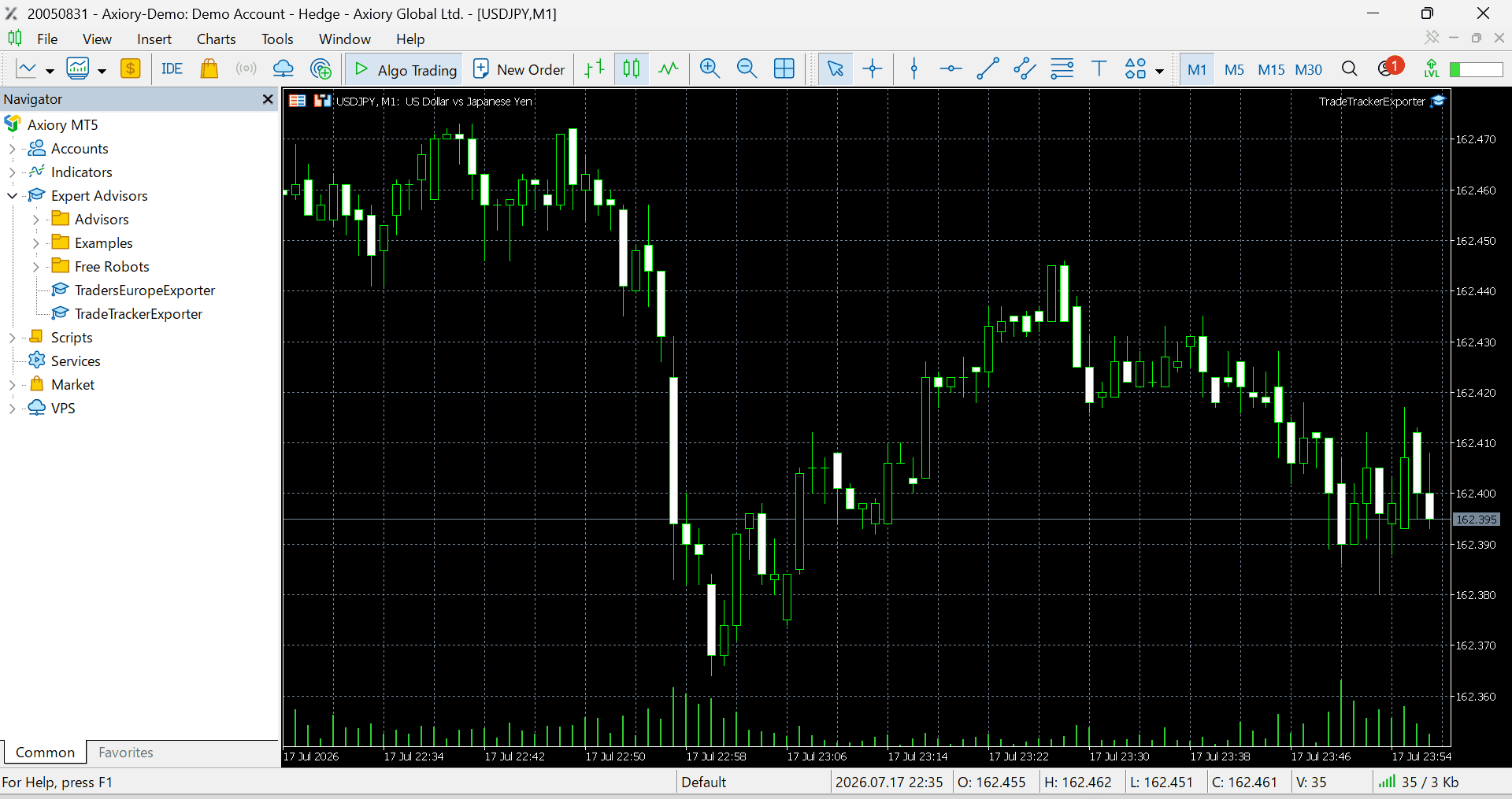
- 3
Allow WebRequest
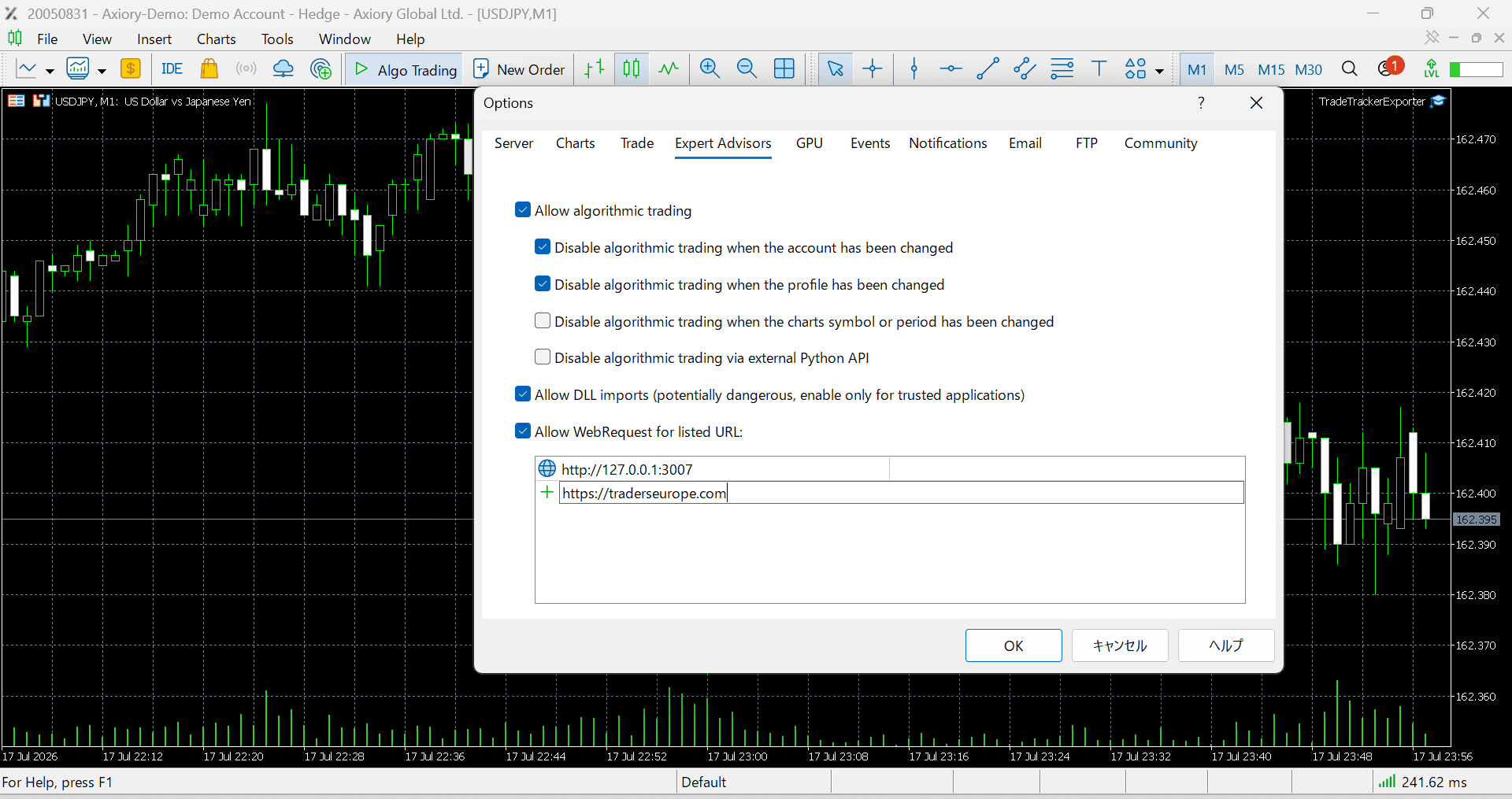
In the terminal: Tools → Options → Expert Advisors → tick “Allow WebRequest for listed URL” and add:
https://traderseurope.comWithout this the EA cannot send anything (error 4014).
- 4
Generate your API key
Just signed up? Your key is already in your welcome email (subject “Your TradersEurope key and setup steps”), so you can skip to step 5.
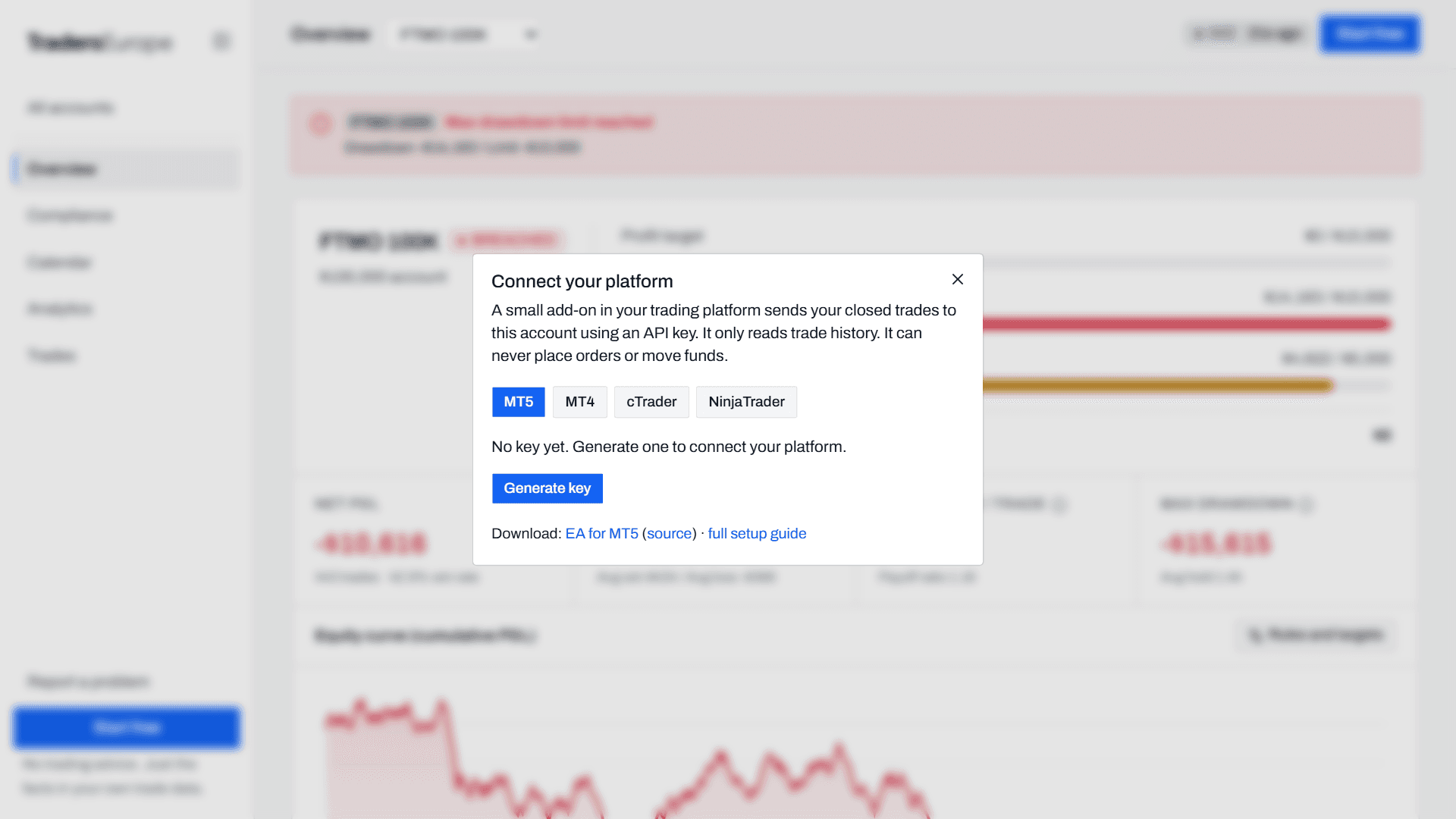
Otherwise: in your dashboard, open your account → Connect platform → Generate key → copy it. The key identifies this one account; you can revoke and re-issue it any time.
- 5
Attach to any chart
Drag the EA onto any chart — the symbol doesn't matter. In the inputs, paste your key into ApiKey (ServerUrl already points to traderseurope.com). Make sure Algo Trading (MT4: AutoTrading) is enabled in the toolbar.
MT4 only: in the Account History tab, right-click → All History — the EA can only send what the tab shows.
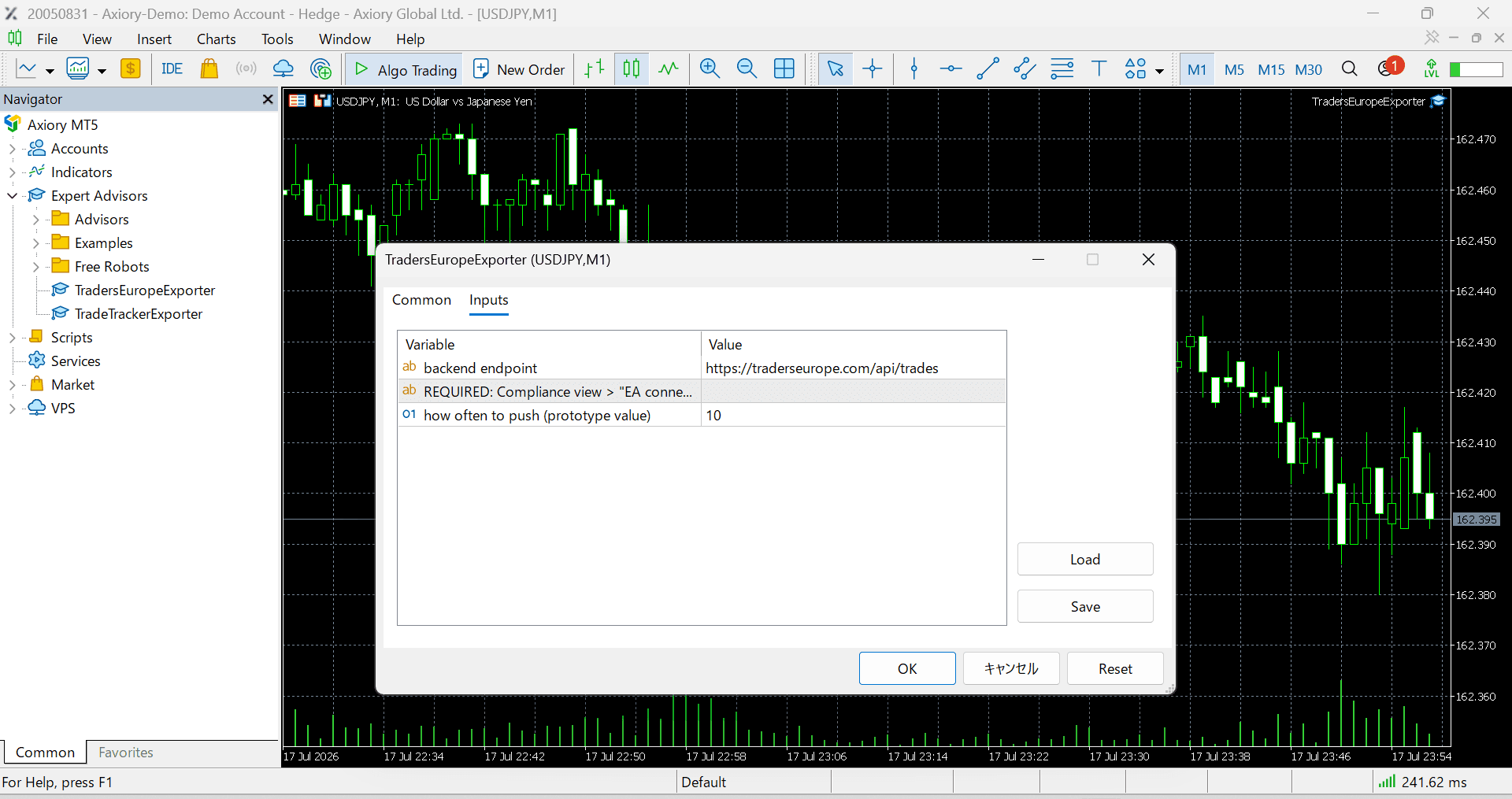
- 6
Verify
Within seconds the EA backfills your whole closed-trade history. The Experts tab logs
TradersEurope: pushed N trades. HTTP 200and the account badge in your dashboard turns green (“Receiving”).The top-left corner of the chart always shows the EA's state —
TradersEurope sync: OKwhen all is well, otherwise what went wrong and what to do.
2b. Connect cTrader (auto-sync)
A small cBot sends each trade as it closes, including your whole past history the first time. It runs with cTrader's lowest access level, has no trading code and never sees your password. The download is the source itself, so you can read every line before building it.
- 1
Download the cBot
From your setup email, or here while signed in: TradersEuropeSync.cs (cTrader desktop for Windows).
- 2
Create it in cTrader
Open Algo → cBots → New (the blank template), name it TradersEuropeSync, replace all the code with the contents of the file, and click Build.
- 3
Generate your API key
In your dashboard: Connect platform → cTrader → Generate key → copy it.
- 4
Add it to a chart and start it
Go back to Trade and open any chart. In the chart's toolbar click Add cBot, pick TradersEuropeSync, paste the key into API key (leave Server URL as it is), click Add to chart, then Start cBot.
Keep it running in cTrader on your PC. cTrader's cloud does not let a cBot send data out.
- 5
Verify
The cBot's log shows
TradersEurope: sent N trades.and the chart's top-left corner showsTradersEurope sync: OK. cTrader sends times in UTC, so if your dashboard offers to switch the account's clock to UTC, accept it.
2c. Connect NinjaTrader Desktop (NT8, auto-sync)
A small indicator reads your account's fills every 10 seconds, pairs them into closed trades and sends any new ones. It has no order code and never sends your account name. NinjaTrader only lets add-ons read the current session's fills, so trades start arriving from the day you install it. For the trades before that, import a Trade Performance export (step 3).
- 1
Download the indicator
From your setup email, or here while signed in: TradersEuropeSync.zip for NinjaTrader Desktop (NT8). Keep it zipped.
- 2
Import it
In the Control Center: Tools → Import → NinjaScript Add-On, then pick the zip. NinjaTrader compiles it for you.
If the import fails and NinjaTrader warned at startup that your Documents folder is synced with OneDrive, use the source file instead: TradersEuropeSync.cs goes in
Documents\NinjaTrader 8\bin\Custom\Indicators\, then New → NinjaScript Editor → F5. - 3
Generate your API key
In your dashboard: Connect platform → NinjaTrader → Generate key → copy it.
- 4
Add it to any chart
Open a chart, right-click → Indicators, add TradersEuropeSync, paste the key into API key and type the account name into Account, exactly as the Control Center's Accounts tab shows it (for example Sim101, or your evaluation account). One chart per account.
- 5
Verify and set the futures clock
Within a few seconds the chart's top-left corner shows
TradersEurope sync: OK. If the chart has no price data yet, look in New → NinjaScript Output instead. Your next closed trade shows up in the dashboard within a minute.In your dashboard, accept Use the futures clock: trades arrive in US Central time and futures firms start the trading day at 5:00 PM CT. Under Rules and targets, the Futures 50K preset uses a trailing drawdown that stops at the starting balance. Change the numbers to your firm's.
3. Or import your history file
Don't want to install anything, or want trades from before the add-on? Save the history file your platform already makes and drop it in. These are the files we read:
- 1
Save the history file from your platform
MT5: Toolbox → History tab → right-click → Report, and save it. XLSX and HTML both work, and so does either the Positions or the Deals view.
MT4: Terminal → Account History tab → right-click → Save as Detailed Report (an .htm file).
cTrader (desktop): History tab → Statement → Excel. Keep the Commission, Swap and Net columns ticked.
NinjaTrader Desktop (NT8): Control Center → New → Trade Performance. Pick the account and dates (about 60 days at a time), set Display to Trades and click Generate. Right-click the list → Export and save it as CSV. If you also run our indicator, export the dates before you installed it; those are the trades it can't send.
Tradovate, and the new NinjaTrader (web and desktop, which export the same file): open Account Reports from the gear next to your account name → Performance → download the CSV. This file has no commissions, so its P&L is before commission.
TopstepX: Trades tab → Export (bottom right) → pick the dates → Export.
Quantower: Trades panel → right-click → Export data → Check all columns → comma separated → Export.
ATAS: export the trading journal to Excel. We read its Journal sheet. Its P&L is before commission.
Interactive Brokers: Client Portal → Performance & Reports → Statements → Activity, pick the period, set the format to CSV and download it. A Flex Query with the Trades section works as well. We use the realized P&L IBKR reports, so commissions are included. Times are read as New York time, IBKR's default.
thinkorswim (stocks and options): Monitor tab → Account Statement, pick the dates, then the menu at the top right → Export to File. The statement doesn't list P&L or fees per trade, so we work the P&L out from the fill prices (before fees). Futures in this statement aren't supported yet.
Webull (stocks and options): export your order history from the desktop app. We read the Webull_Orders_Records CSV it saves. It has no fees, so the P&L is before them.
Anything else: a CSV with one row per closed trade may work if it has the symbol, buy or sell, close time, size and profit. If it doesn't, send us the file and we'll add it.
- 2
Drop it in
Pick the account, click Import in the top bar and choose the file (.htm, .html, .xlsx, .csv, .tsv or .txt). We work out the columns, the decimal separator and the date order from the file itself, so a comma-decimal European export lands the same as a US one.
Where the file has a net profit we use it, and where commission, swap and taxes are separate columns we fold them in, so the totals match your account balance. After the import we show what was read: which platform's file it was taken as, the trade count, the date range and the net P&L. Compare that with your platform's own total before you trust the dashboard.
Re-importing the same file, or files whose dates overlap, is safe: duplicates are detected and skipped. The same goes for trades the add-on has already sent, and for the add-on sending trades you imported earlier: a trade with the same symbol, side, size and P&L closed at the same time is kept once, and any ✓ or ✗ you gave it stays. A position you closed in parts, which an MT5 report shows as one row and the add-on sends as one trade per close, is matched once the last part has closed. Positions that are still open are left out until you close them, because there is no result to measure yet.
4. Reading your dashboard
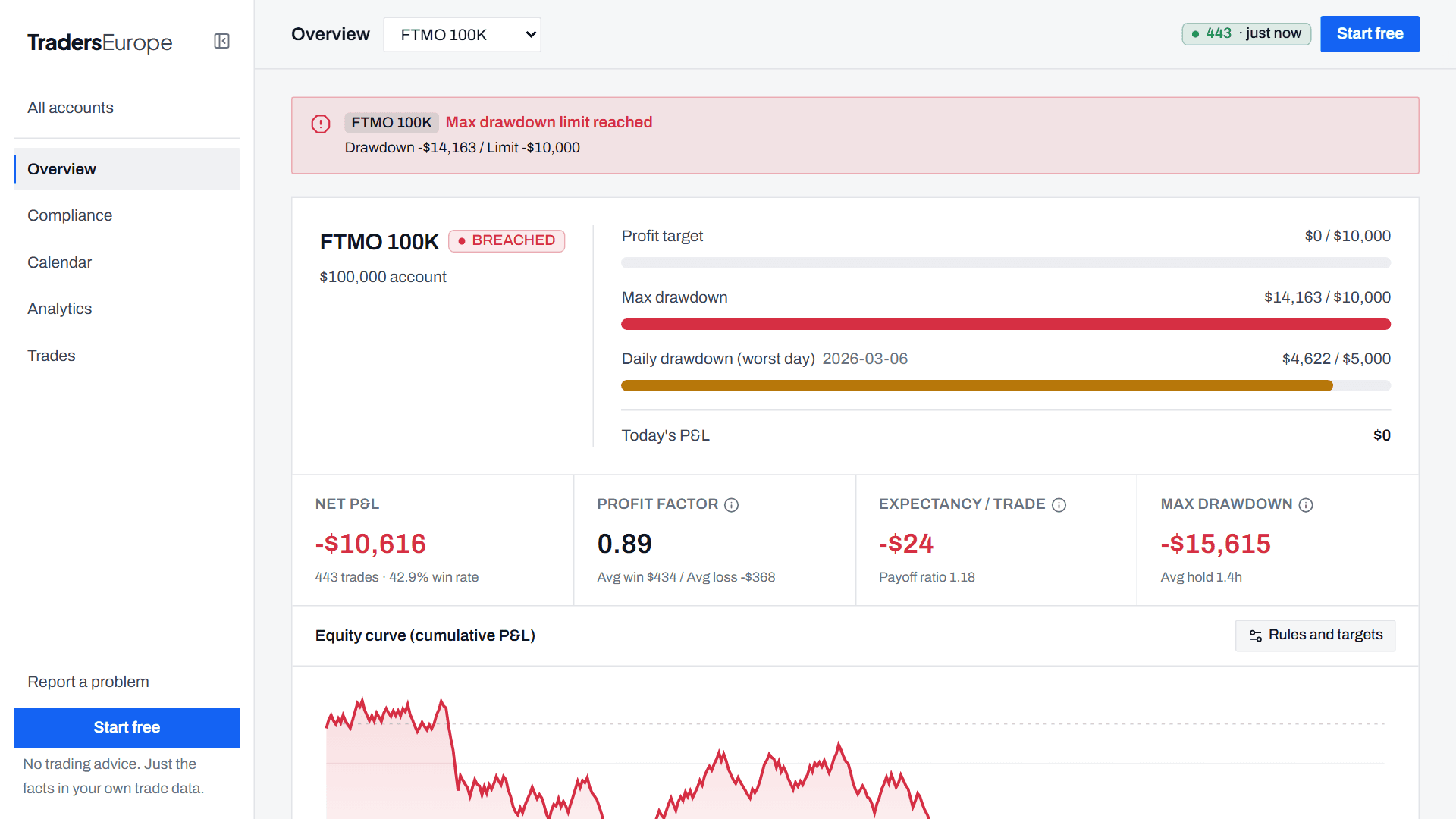
Overview
Equity curve, net P&L, win rate and key stats for the selected account. With several accounts, All accounts combines P&L — while compliance always stays per account, because that's how your firm judges you.
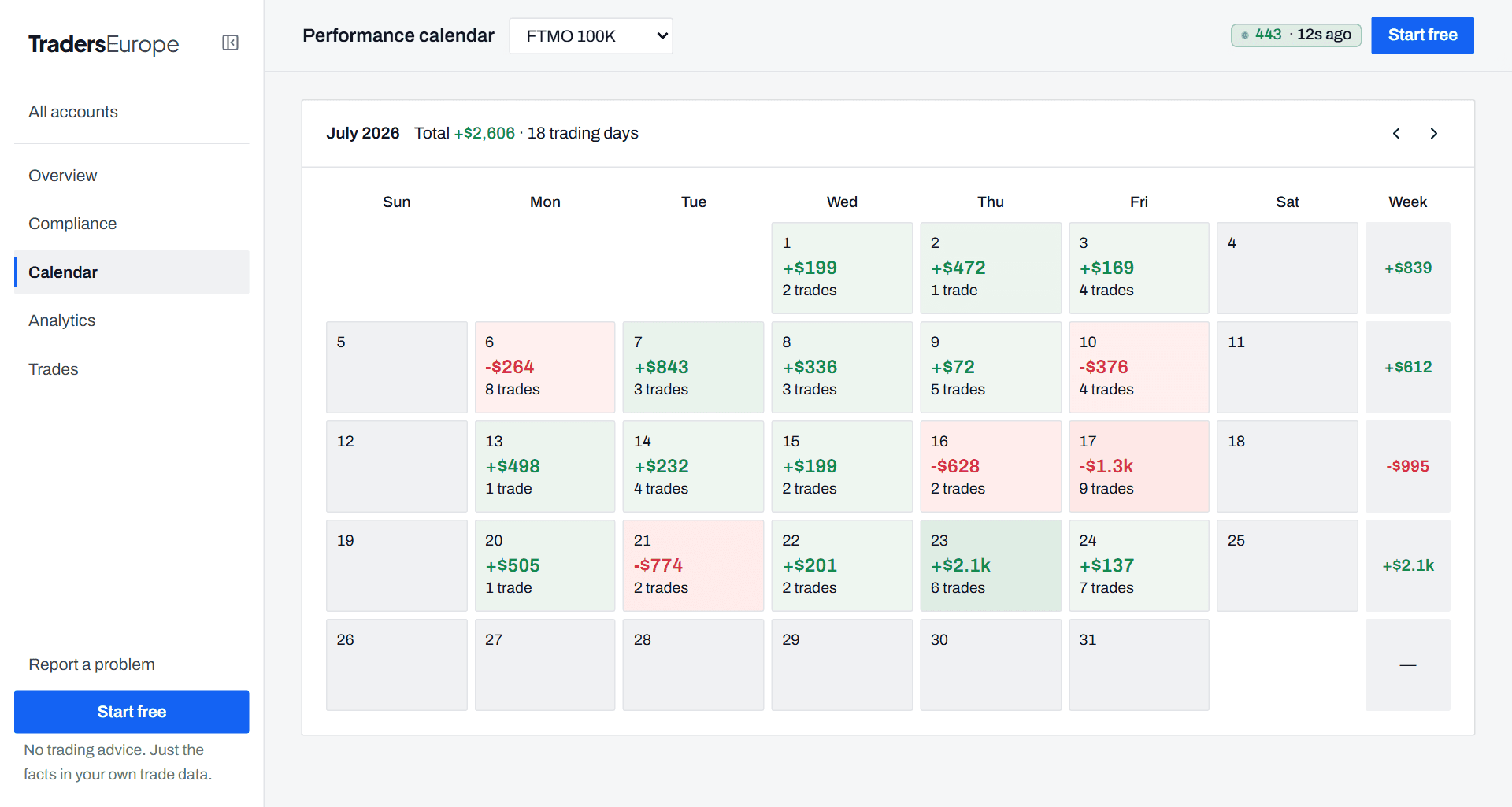
Calendar
A month at a glance: daily P&L, trade counts and weekly totals — the same view most prop dashboards give your reviewer.
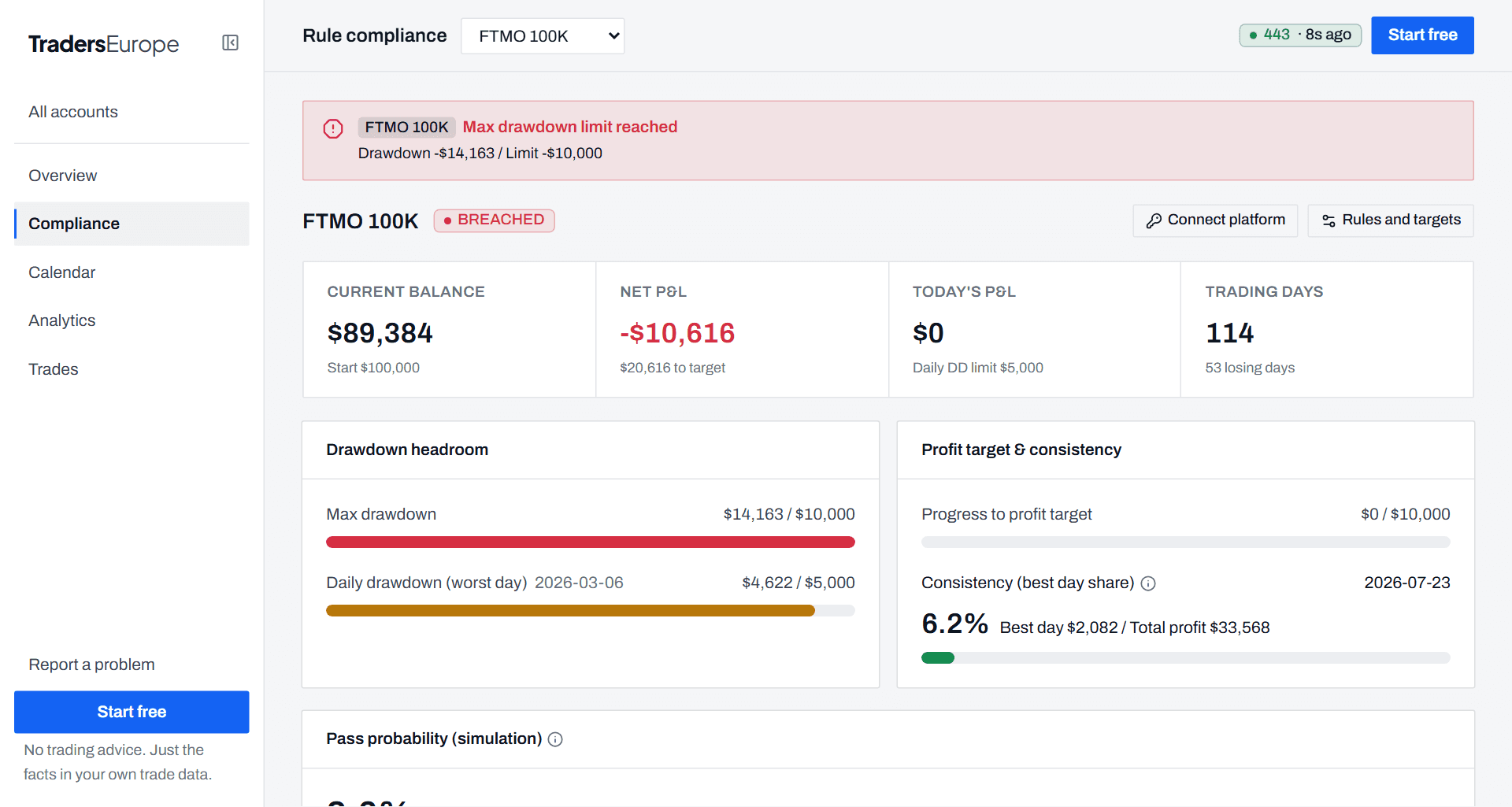
Compliance
Your firm's rules, measured live: how many dollars of daily-loss room you have left today, distance to the max drawdown and the profit target, and minimum trading days. The Pass probability panel runs a Monte Carlo simulation on your own history — 3,000 resampled challenge runs — and shows how often an account that trades like yours passes, and what usually ends the runs that fail. A simulation of your past, not a prediction.
Analytics
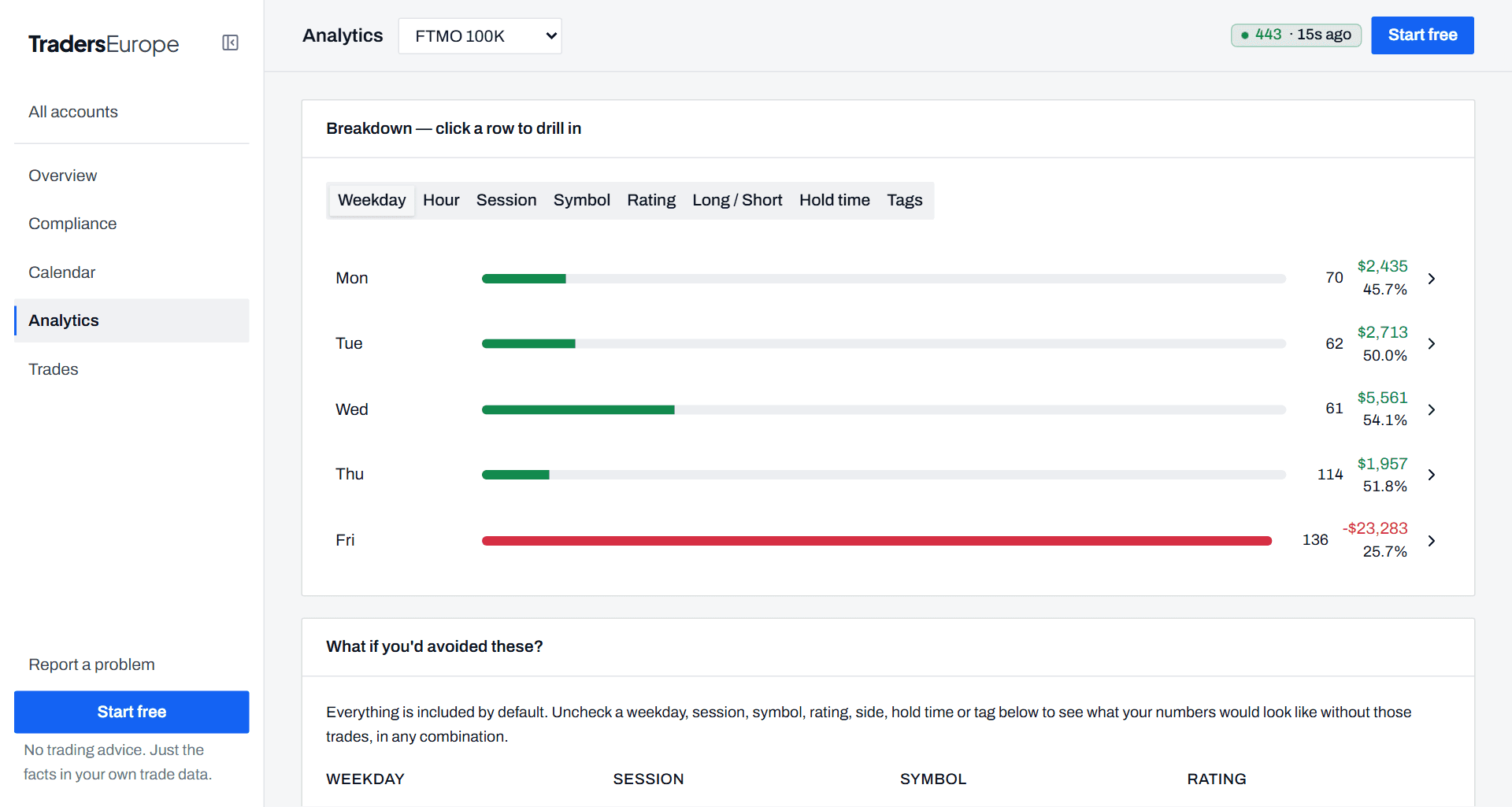
Your results broken down by weekday, hour, session (Tokyo / London / New York) and symbol. Click any row to drill down: a daily P&L chart and the exact trades behind the number. That's how “I lose on Fridays” stops being a feeling and becomes a count.
Rating your trades (✓/✗)
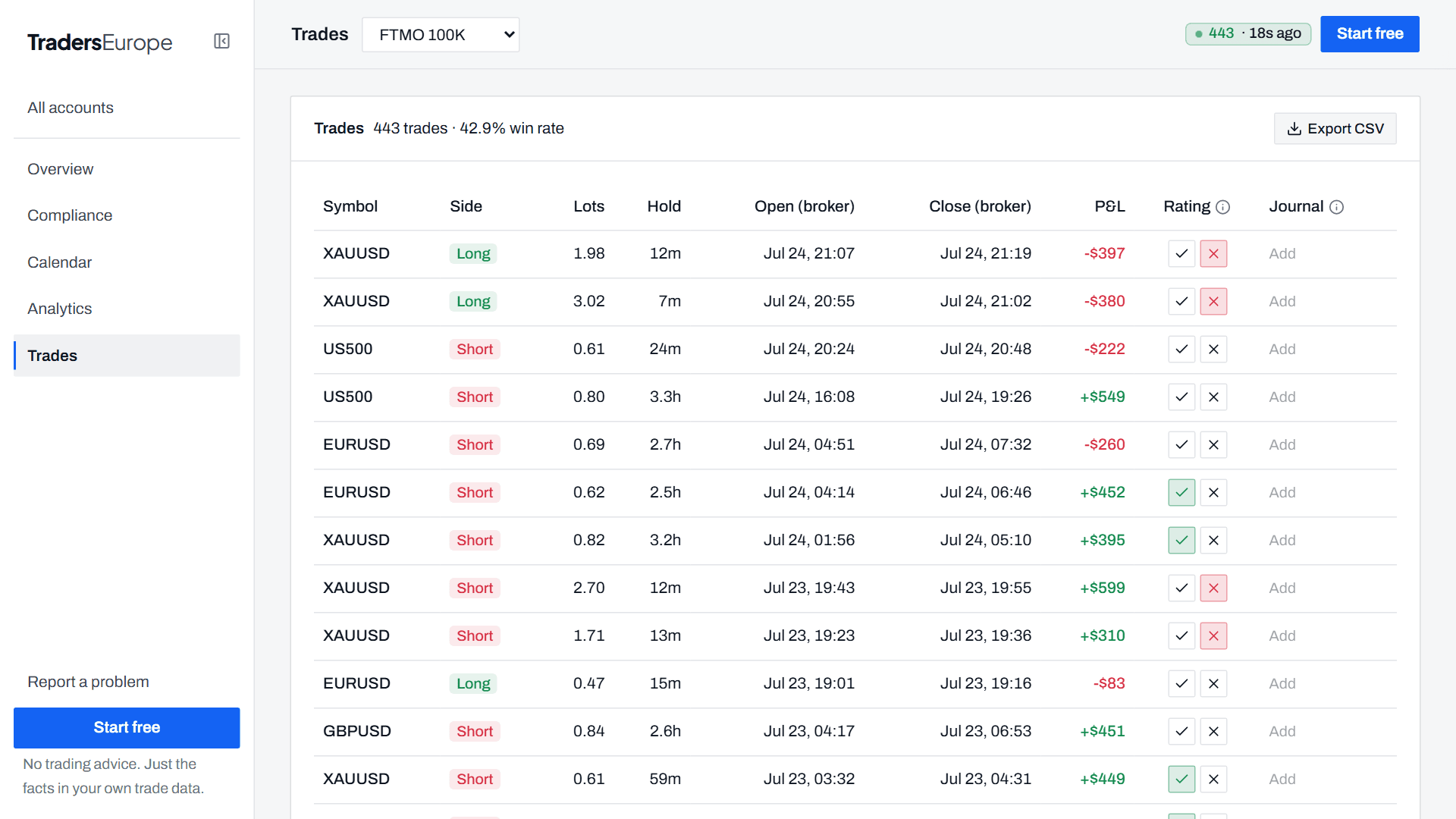
In the Trades table, mark each trade ✓ good or ✗ bad by your own rules — did you follow your plan, regardless of outcome? The Rating tab in Analytics then shows the stats for your ✓ trades alone. Comparing “all trades” vs “trades where I followed my plan” is the fastest honest answer to whether your plan works.
Loss alerts
Set a daily-loss line below your firm's limit and allow browser notifications — you get pinged while there is still room to stop, not after the breach.
Troubleshooting
| Symptom | Fix |
|---|---|
| Error 4014 / “WebRequest not allowed” | Add https://traderseurope.com to the WebRequest URL list (step 2-3), then remove and re-attach the EA. |
| HTTP 401 in the Experts log | The API key is wrong or was revoked. Generate a new key and paste it into the EA's ApiKey input. |
| Trades appear in a different account than expected | The EA inputs still hold an older account's key — MT4/MT5 remembers inputs. Paste the key of the account you want. |
| Nothing arrives, no errors either | Check that Algo Trading is ON, that you are not in the Strategy Tester (WebRequest doesn't work there), and on MT4 that Account History shows All History. |
| Badge shows “Offline” | The badge turns green while pushes keep arriving and goes back to Offline about half an hour after the terminal closes. Start MT4/MT5 and it recovers by itself. After a failed send the EA waits longer before the next try (up to 10 minutes), so it can take that long to turn green again. |
Stuck? Email support@traderseurope.com — include the Experts-tab log line if it's about the EA.